
To explain this rule I choose an example: language Portuguese and the word "art"
We don't want to not allow a segmentation after “art.”
You need to go to:
Settings>Segmentation rules>configure.
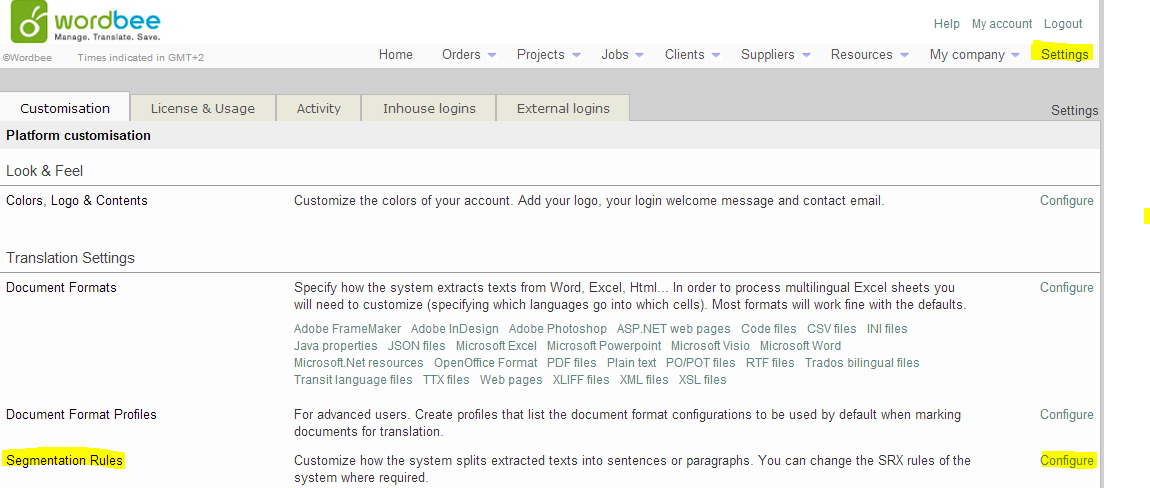
Choose the language so here for our example Portuguese

Click on View, the document will download on to your computer.
Go to your download document and open the xml with Notepad++ .

Click on the binoculars, a window Find will open write art and click “Find All in the current document”
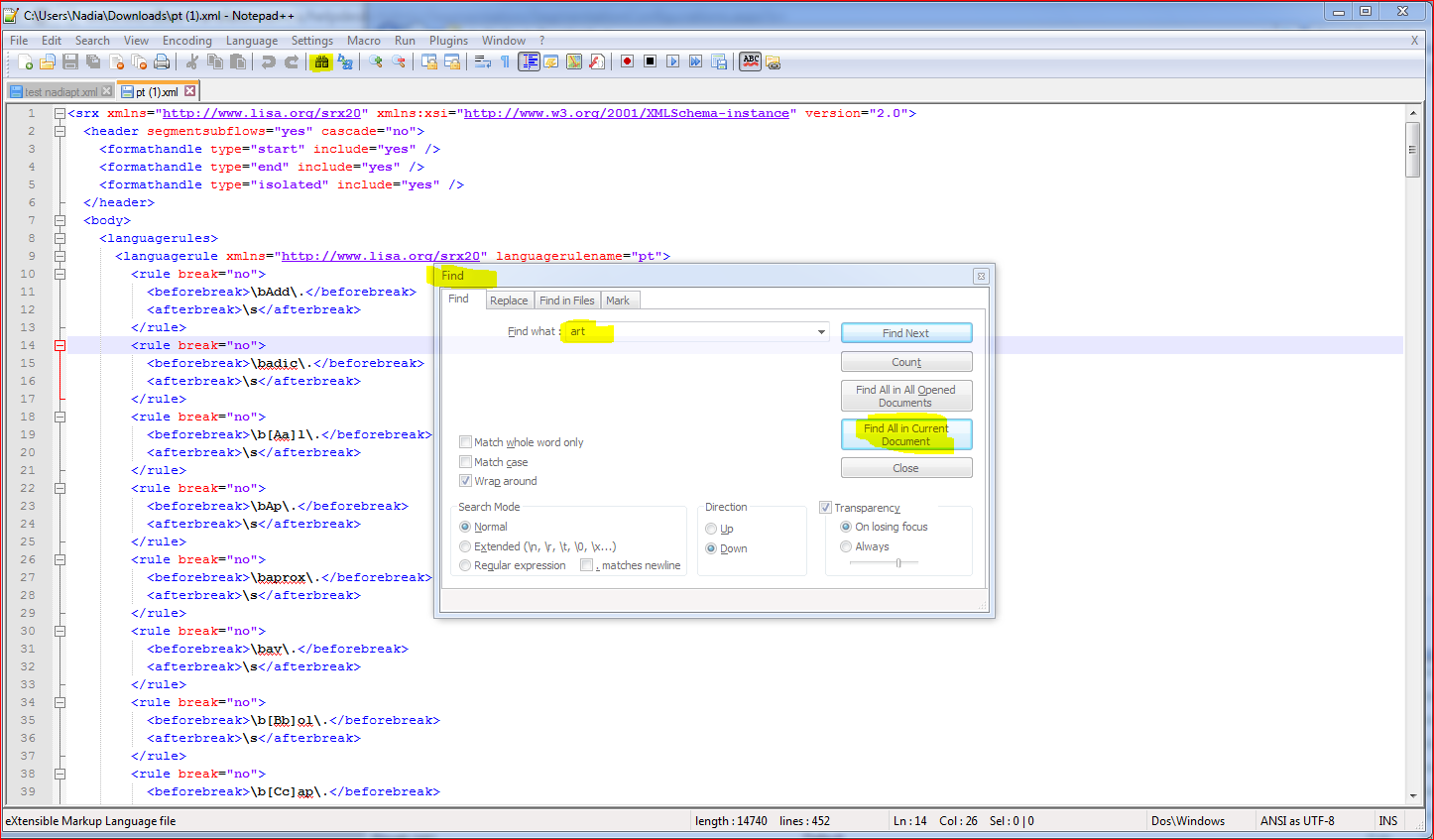
In the bottom you will see “Find result” and as we are looking for the language XML art° we click twice on line 215

Delete the ° and save

Go back to your platform, Settings>Segmentation rules>configure.
Click on Add new

A window will open:
You need to fill up the language give a title and upload the pt.xml doc and click select
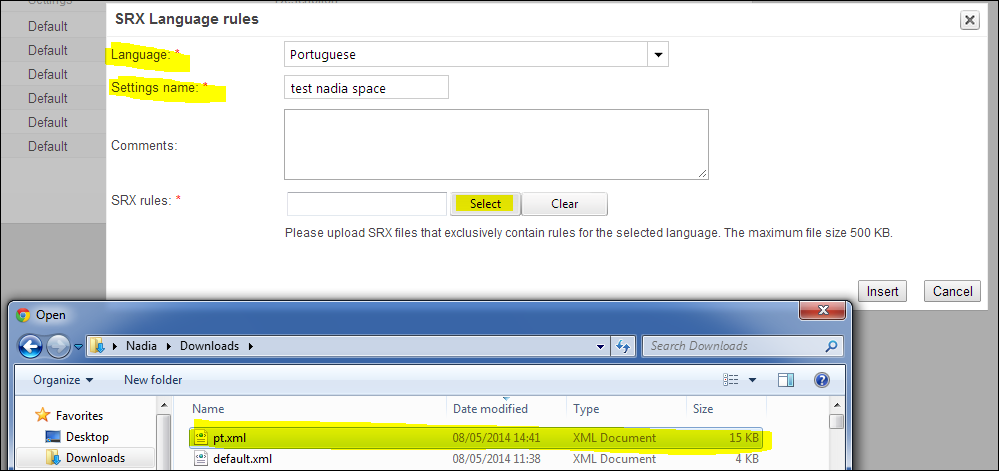
Now we can see that we have two rules for the Portuguese:

When uploading your document and put in translation online in the 2nd step you need to tick Customise segmentation rule. You will see new boxes and click on the arrow of language specific rules and choose your rule created earlier.

And continue your process of creating a project.
For more information please click on the link below:
http://web.archive.org/web/20090709131535/http://www.lisa.org/fileadmin/standards/srx20.html
Comments
0 comments
Please sign in to leave a comment.